

Last week, the class explored desktop publishing with a focus on making a school newsletter and flyer. We had to use Microsoft Word for both the newsletter and flyer which has a nice amount of templates to work with. Another great application to use and one that I have more experience with is publisher which in my opinion has more to work with and an easier layout, but with less pre- built template styles. For this project, the class had to fulfill certain visual criteria such as adding graphics, word art, and manipulating pictures.
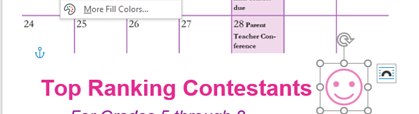
Manipulating pictures was the fun part, but does require some familiarity with the ribbon. However, once you get the hang of it, manipulating shapes and pictures are easy. Here is an example of how I added a smiley face to my ESL newsletter and changed the color.
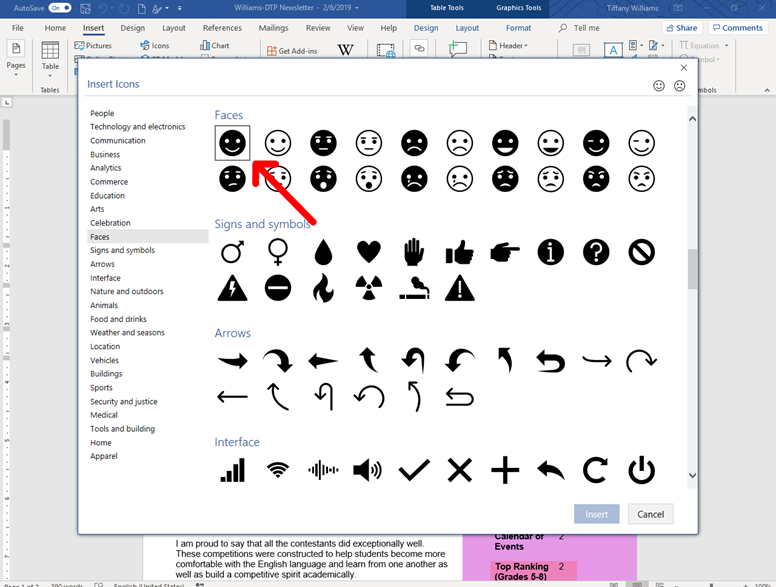
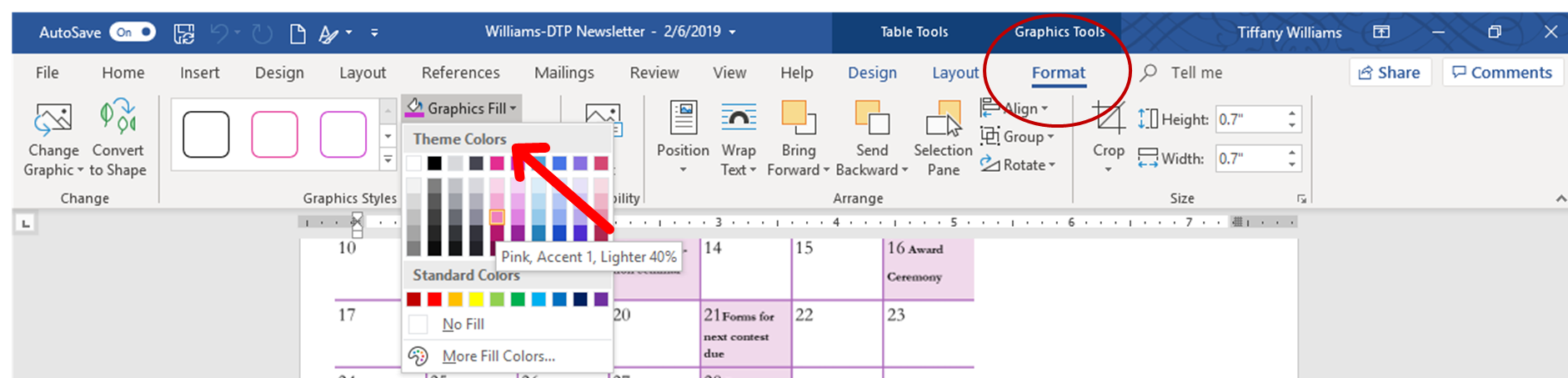
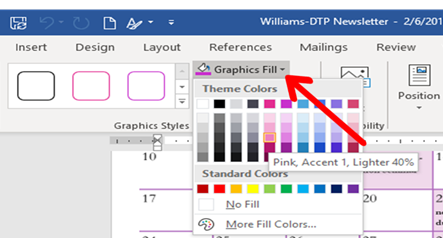
In the graphics styles block, click on the graphics fill drop down menu as shown below.
You now have a nice pink smiley face icon to add to your document! ^^
For more information on understanding how to unlock all of the cool features that Microsoft Word has, please visit the GCF Learn Free website. They have a lot of free tutorials on demystifying the Microsoft Office Suite as well as much more.
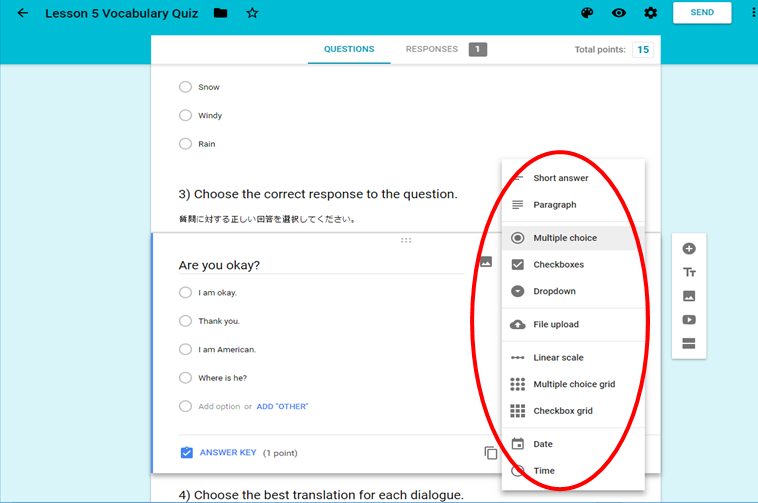
Google forms is an application by Google that allows the user to make surveys, but a person can do so much more with it than that. This week the class could decide between either making a survey or a quiz. I decided to use the form to make an ESL vocabulary quiz designed for students who speak Japanese as their native language. As you can see in the picture below, Google forms gives the user many different options for the structure of their survey.
 Effective Use of Technology in Classrooms