

Uncategorized

Desktop Publishing and Google Forms

Last week, the class explored desktop publishing with a focus on making a school newsletter and flyer. We had to use Microsoft Word for both the newsletter and flyer which has a nice amount of templates to work with. Another great application to use and one that I have more experience with is publisher which in my opinion has more to work with and an easier layout, but with less pre- built template styles. For this project, the class had to fulfill certain visual criteria such as adding graphics, word art, and manipulating pictures.

Manipulating pictures was the fun part, but does require some familiarity with the ribbon. However, once you get the hang of it, manipulating shapes and pictures are easy. Here is an example of how I added a smiley face to my ESL newsletter and changed the color.
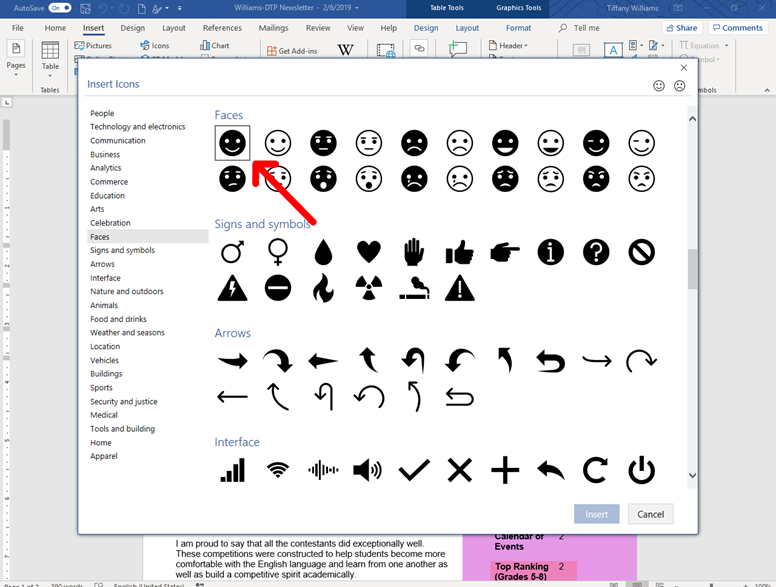
Go to the “insert” tab on the ribbon and select icons. A pop-up box with various icons will appear.
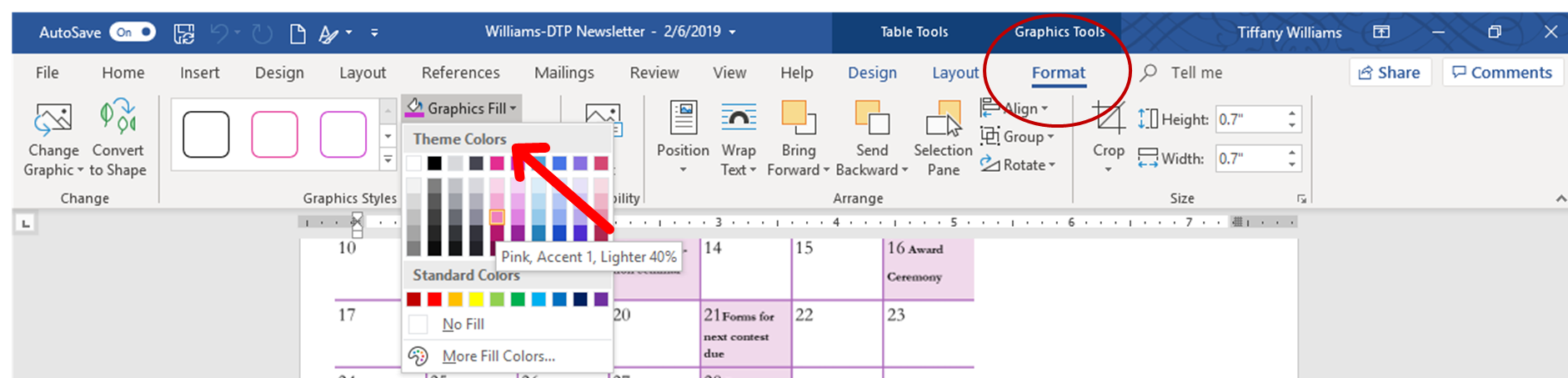
After selecting an icon press the insert button, click on the icon and the graphics tools tab will appear on the ribbon. Click on the format tab.

In the graphics styles block, click on the graphics fill drop down menu as shown below.
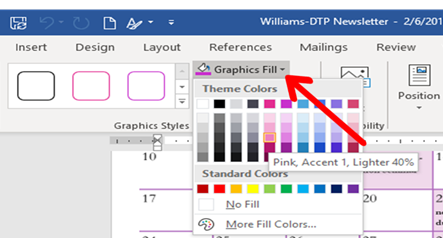
You now have a nice pink smiley face icon to add to your document! ^^

For more information on understanding how to unlock all of the cool features that Microsoft Word has, please visit the GCF Learn Free website. They have a lot of free tutorials on demystifying the Microsoft Office Suite as well as much more.

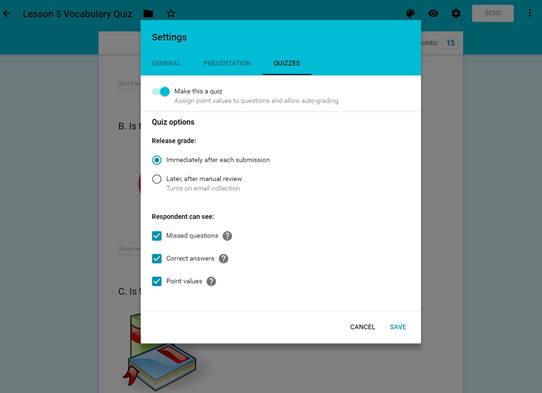
Google forms is an application by Google that allows the user to make surveys, but a person can do so much more with it than that. This week the class could decide between either making a survey or a quiz. I decided to use the form to make an ESL vocabulary quiz designed for students who speak Japanese as their native language. As you can see in the picture below, Google forms gives the user many different options for the structure of their survey.
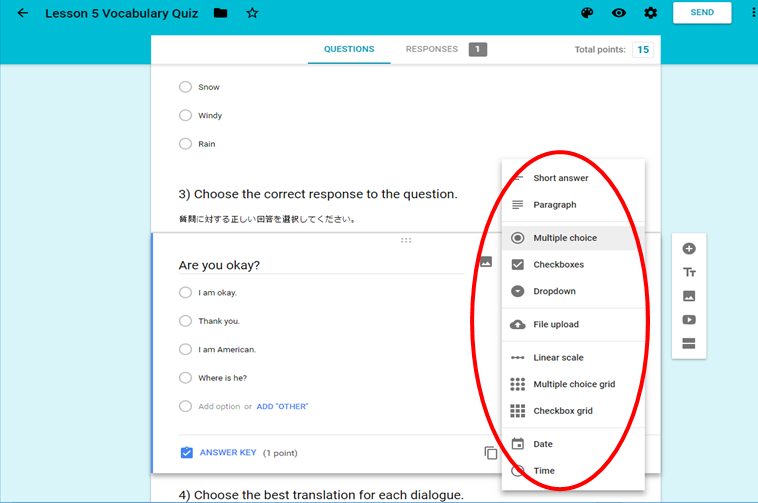
The quiz you make can have a range of different question types from short answer to checkboxes.
You can format grading for your quiz.
Technology in Classrooms

My Thoughts on the ISTE Standards for Educators 1/30/2019

The ISTE Standards for Educators website provides a comprehensive guide to understanding the many important elements in becoming an effective educator. The standards are separated into seven sections which give detailed requirements listed in each section’s indicators.

Among the standards that I would need to improve on the most is the third standard: Digital Citizen. I feel that in order for a teacher to successfully inspire their students to contribute responsibly in this digital age, extensive knowledge on online privacy and safety, intellectual property, and online resources must be achieved.

For someone who for the longest had absolutely no interest in maintaining an online presence until recently, this standard as well as the other six seem a little daunting. However, I understand how beneficial it is to adopt these standards as an aspiring educator and transcend the restrictive traditional methods of instruction that no longer encompass everything a student needs to be prepared for. By utilizing technology in the classroom, educators make learning material more accessible for everyone.

The first standard: Learner, is one that I will be participating in frequently. I understand that teachers are educators, but they are also constant investigators. Educators can only keep their students up to date if they familiarize themselves with current research on making sure that learning is always taking place in the classroom.

Technology in Classrooms

Blogs in Education Assignment 1/23/19

This week I learned the importance of using technology in the classroom. The first technology resource the class is learning this week is blogging. One of the benefits of teachers using blogs, which I am still trying to get used to is being able to:

  1. Communicate with parents and keep them up to date about assignments and events.
  2. Post assignments and when they are due for students who may have missed class.
  3. Engage students and allow them to express their ideas of a topic with each other and learn proper internet etiquette.

As stated by Jacqui Murray in the “13 Reasons for Using Technology in the Classroom“, the common core standards now requires that technology is paired with instruction. This gives students more freedom and control over their learning experience. It allows teachers to be more creative with assignments and projects where students can build on their strengths.